One paper on two screens
- Open a paper.
- Press 2 screens:
- the button at the top left, or ⌘⇧D.
- the button above the paper, or Ctrl+Shift+D.
- the two-panes button in the top bar.
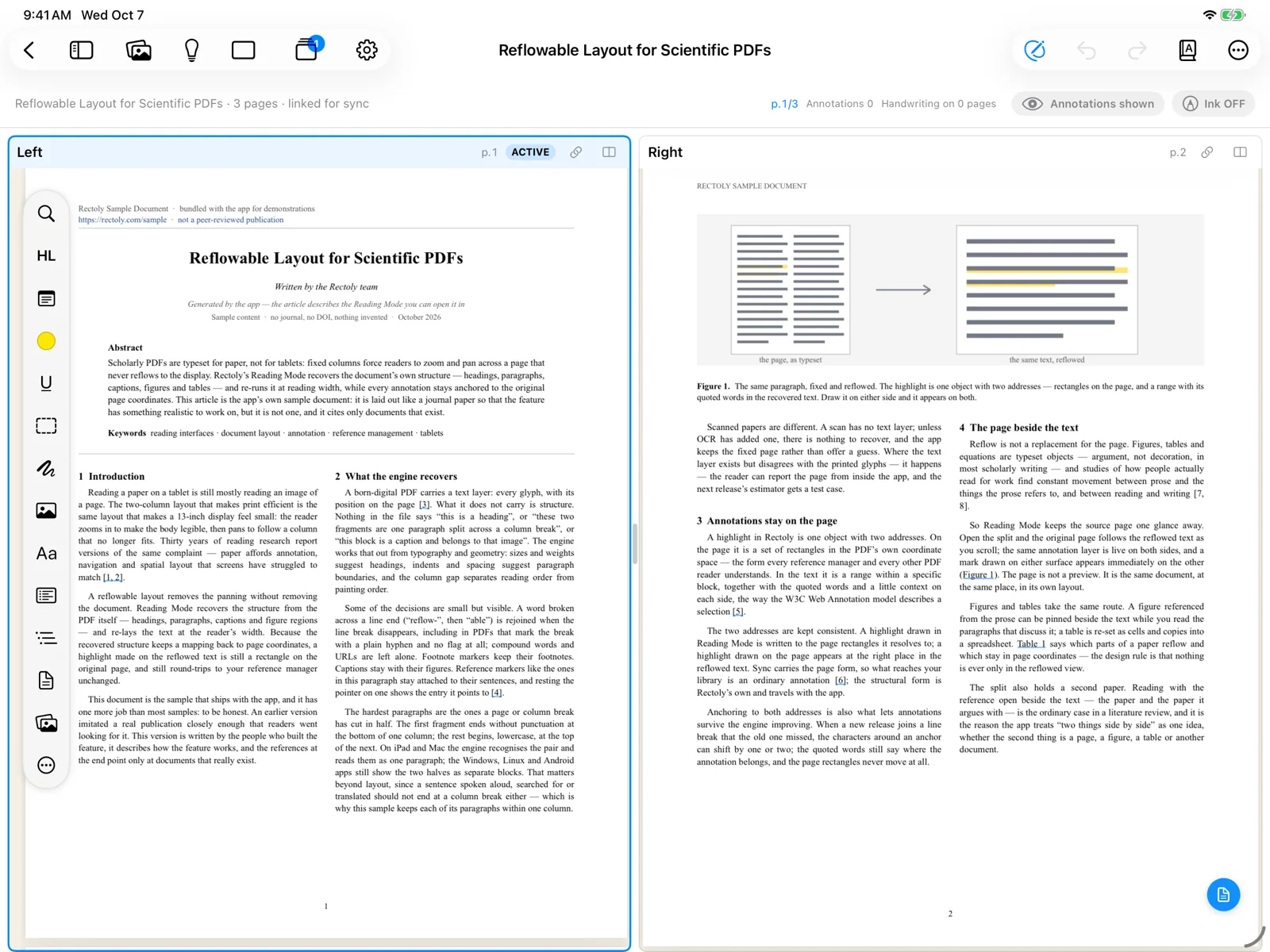
- The paper appears twice. The second pane starts at the next page, so you can keep a figure or the reference list in one pane and read on in the other.
Going from one pane to two is included in the purchase. It is free during the 14-day trial and inside the sample paper. Going back to one pane and changing the arrangement are always free. See Trial and purchase.
A different paper beside
- Open Open papers and choose Open left or Open right on a card. When you pick a paper to open, Open in lets you choose the side.
- In the library, select a paper and press Ctrl+Enter, or right-click it and choose Open beside. To always open the next paper beside the current one, turn on Settings › Reader › Open the next paper beside the current one.
- Long-press a paper in the library and choose Open in right pane, or long-press a card in Open papers and choose Open right.
- On Android the right pane is for reading only; annotate in the left pane.
See also Open papers and switching.
Which pane is active
Tap or click a pane to make it the active one. Cards from Open papers open in the active pane. If you prefer a card to show its paper in both panes, change the setting for the open-paper cards (Open in both panes / Open in the active pane only).
Side by side or stacked
- In the reader's settings, Two-pane arrangement: automatic, side by side, or stacked.
- Press the arrangement button above the paper. Each press goes on to the next choice: Automatic (follows the window’s shape), Side by side, Stacked.
- On Android the panes are always side by side.
Automatic stacks the panes when the window is tall (about 1.2 times taller than it is wide) and puts them side by side otherwise. The same arrangement is used when Reading Mode shows the PDF beside the text.
Swap the two sides
Take a pane by its header and move it across to swap the two panes. The same goes for Reading Mode and the PDF, when Reading Mode shows the PDF beside the text.
- Press and hold a pane's header, then move it to the other side. With a mouse or trackpad, just drag it. Swap left and right (Swap top and bottom when the panes are stacked), in the menu of the arrangement button on the header, does the same.
- Drag a pane's header to the other side. Press Esc to cancel. You can also right-click the header and choose Swap left and right (Swap top and bottom when the panes are stacked).
- Press and hold a pane's header, then move it to the other side. With a mouse, just drag it. Swap left and right in the ⋮ menu does the same.
The sidebar (thumbnails, annotations, outline) and the figure and research theme columns move the same way: take one by its header and put it on the left or the right of the paper.
- With VoiceOver, use the header's actions Move to the left and Move to the right.
- You can also right-click the header and choose Move to the left or Move to the right.
- With TalkBack, use the header's actions Move to the left and Move to the right.
Swapping keeps each pane's page, zoom, selection and unfinished handwriting. The border goes with the pane it belongs to.
- Which of two papers is on the left is remembered with that pair of papers. The sides of Reading Mode and the PDF, and where the sidebar and the columns sit, are remembered on each device.
- The pair of papers you had side by side is remembered after you reopen the app. Open one of them and, if the other's PDF is on this device, it comes up beside it on the same side and page as before.
Change the size of the panes
- Drag the border between the panes. Double-tap it (double-click with a mouse) to make them equal again.
Back to one pane
Press 2 screens again (⌘W / Ctrl+W closes the active pane).
The next time you go to two panes, Rectoly can either bring back the pages you had before (Restore the layout from before the split, the default) or show the page you are on beside the next one (This page and the next). Choose under the setting When returning from 1 screen to 2 screens.
When two panes do not fit
- On iPhone and in narrow windows such as Slide Over, papers open in one pane.
- If the window is too narrow for two panes side by side, the two papers take turns as tabs. Widen the window or hide the library to see both.