Show the open papers
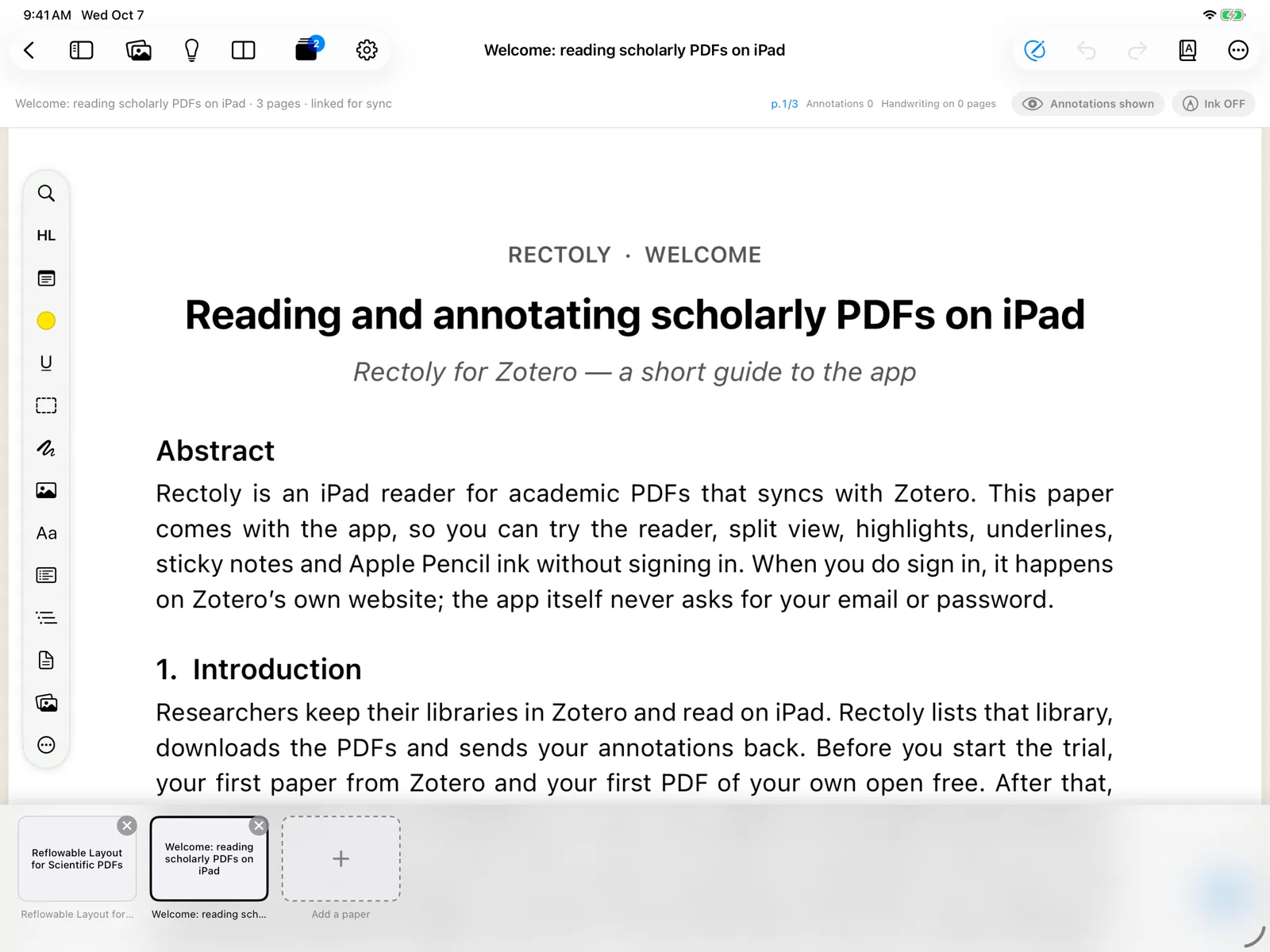
Press Open papers (the button with stacked pages and a count):
- in the top bar of the reader, or press ⌘⇧O.
- in the top bar, or press Ctrl+Shift+A.
- in the top bar of the reader. In the library, the same papers are offered to pick up where you left off.
Your open papers appear as cards.
Switch between papers
- Press a card to switch to that paper.
- ⌃Tab / ⌃⇧Tab go to the next and previous paper.
- Ctrl+Tab / Ctrl+Shift+Tab go to the next and previous paper. With the cards shown, you can also use ← →, Enter to open, Delete to close and Esc to put them away.
- Swipe sideways near the left or right edge of the screen to go to the next or previous paper.
- At either end you see "This is the first PDF" or "This is the last PDF" with Back to Library.
- At either end, the open papers appear so you can pick one.
- At either end, you go back to the library.
With two panes, a card opens in the active pane. See Two panes.
Open, close and reorder
- The + card at the end, Open another paper, lets you find a paper and open it.
- × on a card closes that paper.
- Drag a card (long-press first on a touch screen) to change the order.
- Right-click a card to open it, open it beside the current paper, or close it.
- A card marked Local is a PDF from this device rather than from your Mendeley or Zotero library.
Up to eight papers
Up to eight papers stay open. When you open a ninth, the oldest paper that is not on screen is closed. Its annotations are saved; open it again from the library at any time.
Switching between open papers is free. Opening a paper beside another one is included in the purchase — see Two panes.