Highlight or underline text
- Select the text.
- Press and hold, then drag the handles.
- Drag over the text with the mouse. Double-click selects a word.
- Long-press a word, then drag the handles to extend the selection.
- Choose Highlight or Underline:
- with the Highlight or Underline tool on the tool rail, the H / U keys, or right-click on Mac.
- in the bar that appears over the selection (click a color dot to highlight in that color), with the H / U keys, or by right-clicking.
- in the bar that appears over the selection.
You can also pick the tool first and then select the text.
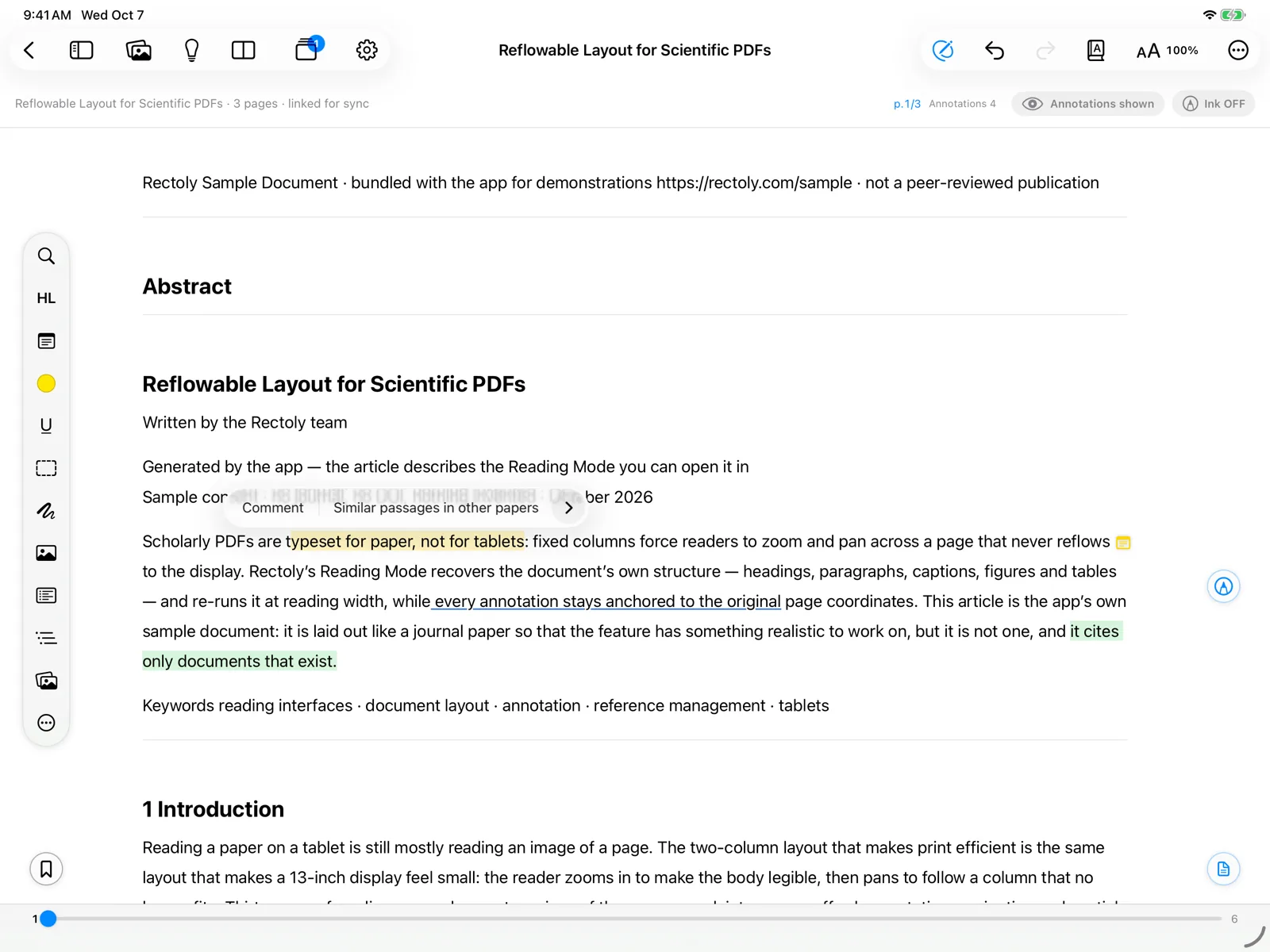
Creating highlights, underlines and areas is included in the purchase. It is free during the 14-day trial and inside the sample paper. Seeing and copying the ones you already have is always free. See Trial and purchase.
Colors
There are eight colors, the same as in Mendeley and Zotero: yellow, green, red, blue, pink, purple, orange and gray.
- Choose the color with the Color tool (on the tool rail it shows as a dot of the current color).
- Click one of the eight color dots in the selection bar.
- Choose the color with the Pen colour tool.
To change the color of a highlight you already made, press it and choose another color.
Highlight an area
Use Area highlight to box a figure, a table or an equation.
- Choose the area highlight tool.
- Mark the area:
- Long-press on the page to place a frame. Choose the tool again to stop.
- Drag a rectangle over the figure or table.
Trace text with the HL Pen
- Choose the HL Pen and draw over the text you want to highlight. It is handy with Apple Pencil.
- Choose the HL Pen and draw over the text you want to highlight.
In the Zotero edition the HL Pen also works on scanned PDFs.
Work with an existing highlight
Press a highlight (right-click on Mac and Windows) to:
- change its color, copy its text, or delete it;
- add a note to it (see Sticky notes);
- Copy with page (see Copy with page) or Send to theme (see Research themes).
If annotations are hidden, the first press shows them again; press once more to add.
Highlights sync to Mendeley or Zotero with your other annotations. See Annotation sync.