Add a sticky note
- Choose the Sticky note tool.
- Tap or click where the note should go.
- On Mac you can also right-click empty space on the page and add a note there.
- You can also long-press empty space on the page.
- Type your note and press Add / Save.
If handwriting is on, turn it off first (press Ink ON in the status bar, or at the top right on iPhone) to use the Sticky note tool.
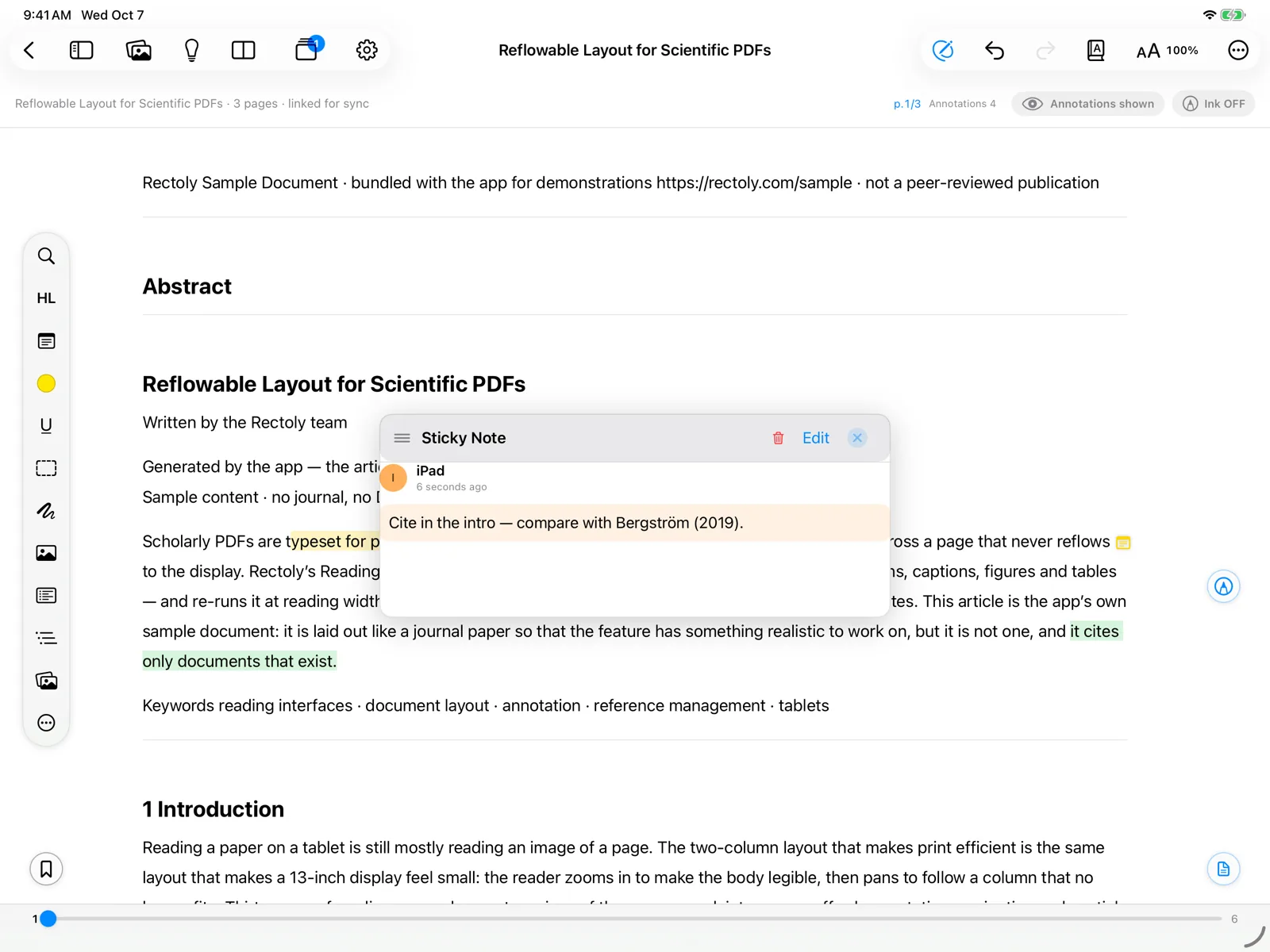
Adding sticky notes is included in the purchase. It is free during the 14-day trial and inside the sample paper. Reading the ones you have is always free. See Trial and purchase.
Read, edit and move
- Press a note's marker to open it in a floating panel. There you can read, edit, recolor or delete it.
- Rest the pointer on a marker to read the note without opening it.
- Drag the panel by its title to move it out of the way.
- Drag the marker to move the note on the page.
- You can drag a marker onto another page.
- In the panel, Insert p.N adds a link to a page into the note's text.
Several panels at once
Normally, opening another note replaces the panel that is open. To keep a panel for each note until you close it, turn on Open multiple sticky note panels at once:
- in the reader's settings.
- in Settings › Reader.
- in Settings › Reader.
A note on a highlight
To attach a note to a highlight or underline, press it and choose Note (on Windows, right-click it and choose Add note).
- In the Mendeley edition the note is kept as a sticky note at the start of the passage, so Mendeley and your other devices show it too.
- In the Zotero edition it is the highlight's comment, as in Zotero.
Find sticky notes
Search in a paper can look at sticky notes only. See Search. Sticky notes sync with your other annotations — see Annotation sync.