Add a PDF
You need to be signed in (see Signing in and accounts).
- Start adding:
- In the library, choose … › Add PDF to Mendeley, or press ⌘⇧M.
- In the library, choose … › Add PDF to Zotero, or press ⌘⇧M.
- Click ⋮ above the library list › Add PDF to Mendeley…, or press Ctrl+Shift+M. While reading, the same item is in the Import menu above the paper.
- Click ⋮ above the library list › Add PDF to Zotero…, or press Ctrl+Shift+P. While reading, the same item is in the Import menu above the paper.
- In the library, choose ⋯ › Add PDF to Mendeley….
- In the library, choose ⋯ › Add PDF to Zotero….
- Choose the PDF.
- You can also drag PDFs from File Explorer onto the library column ("Drop PDFs here to add them to Mendeley"; in the Zotero edition, "Drop PDFs here to add them to Zotero"). Several PDFs are added one after another.
- Rectoly uploads the PDF and reads its details.
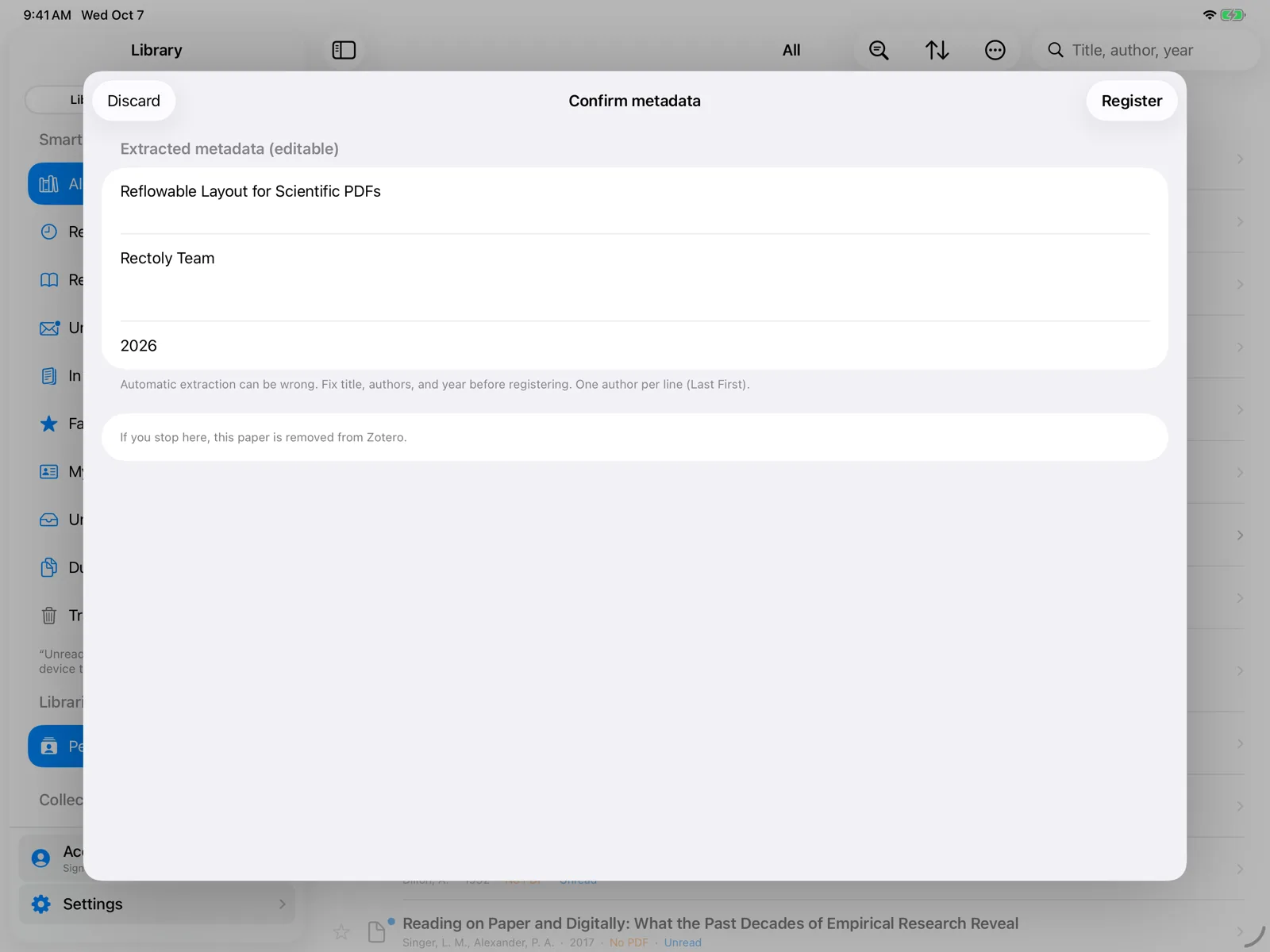
- Confirm metadata appears. Check and fix the Title, Authors (one per line) and Year. Automatic extraction can be wrong, so it is worth a look.
- Press Register. The paper is added to your library and opens right away.
Adding PDFs is included in the purchase. It is free during the 14-day trial. See Trial and purchase.
If the paper is already in your library
When a paper with the same DOI or a similar title is already in your library, the confirmation says so ("A similar paper is already in your library"). Choose Open Existing (discard new) to open the paper you already have and drop the new upload, or register the new one anyway.
Other ways to add PDFs
- Watched folder: PDFs you save into a chosen folder, such as Downloads, can be added automatically. See Watched folder and file renaming.
- While signed in, sharing a PDF to Rectoly from another app (Open in Rectoly) offers to add it.
- To read a PDF without adding it to your library, open it on this device only. See Opening a PDF without signing in.
Zotero edition
In the Zotero edition, Rectoly reads the details from the PDF itself, looking them up on Crossref and arXiv when it helps. It creates a parent item with the PDF attached. Discard on the confirmation removes what was uploaded.
- The paper goes into the library on screen: Personal Library or a group.
- The paper always goes into My Library, even while a group is on screen.
- The paper goes into the library on screen: My Library or a group.