Export a paper
- Open the paper.
- Open the export:
- Choose … › Export, or press ⌘⇧E. When two panes show different papers, choose which one to export (or both).
- Above the paper, click Export and hand off to writing and choose what to export.
- Tap Export & share (the share icon) in the bar at the top. On a phone it is in the ⋮ menu.
- Choose where to save it, or hand it to another app.
- The share sheet opens with the files.
- Choose a folder or file name. "Saved N files to “…”." appears, and Show in folder opens it.
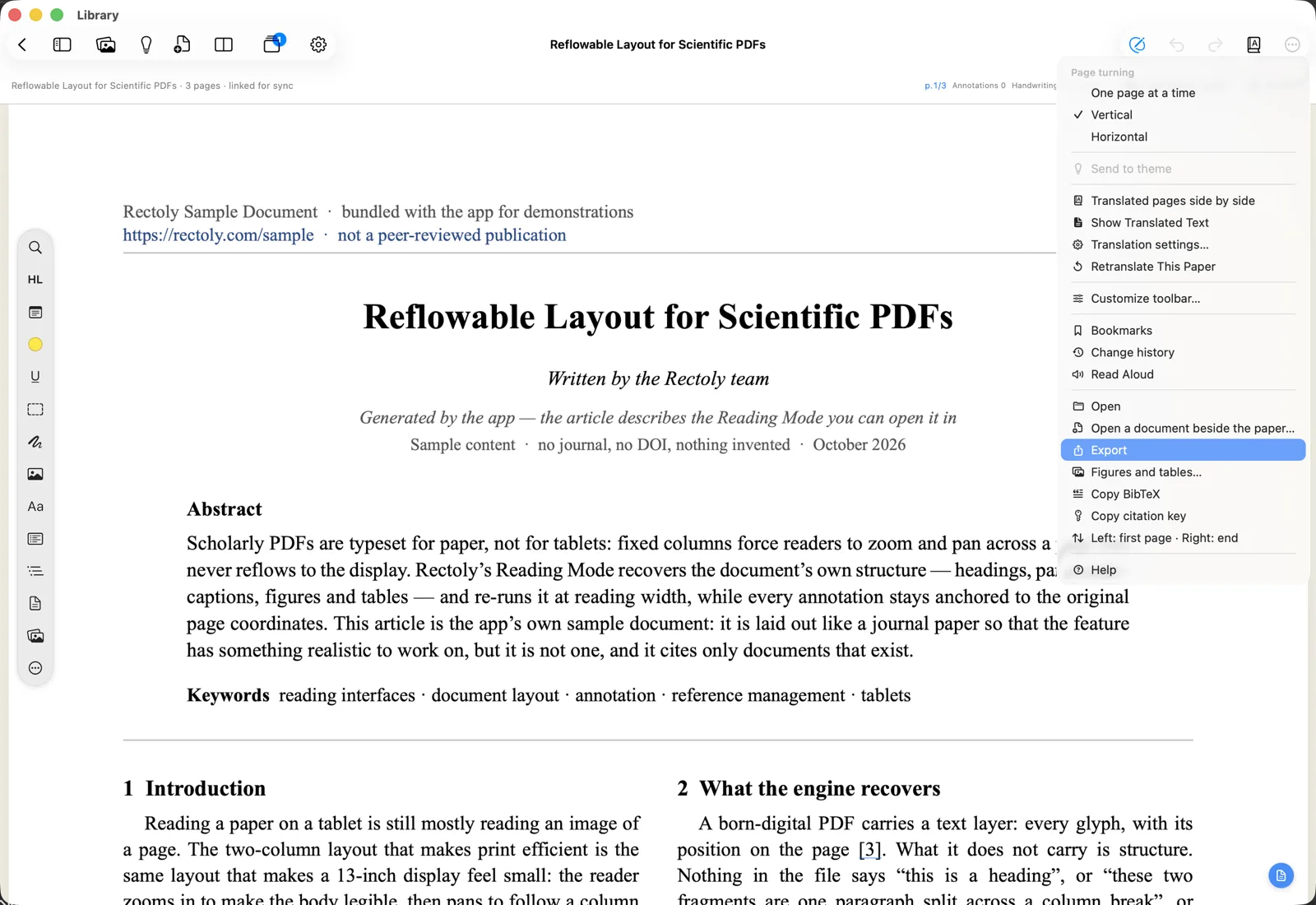
What you can export
- An annotated PDF, plus the paper's annotation archive (JSON) that you can import again later.
- Export package…: the annotated PDF, the notes, the notes bundle and the archive, into one folder.
- Annotated PDF…, Notes as Markdown… (
notes.mdandnotes-bundle.jsonin CSL-JSON), Figures and tables… and Archive… one by one. The same menu has Copy BibTeX and Copy citation key. - The annotated PDF, the notes as Markdown, the notes bundle (JSON) and the archive, together.
The annotated PDF is a copy with your highlights, sticky notes and handwriting drawn in. The original PDF is never changed.
- In the annotated PDF from Android, each page is saved as an image.
See also Exporting figures and tables, BibTeX and citation keys and Archives.
Exporting is free, also after the trial.
Send notes to Mendeley or Zotero
Put your highlights and notes into the paper's notes in your library, where Mendeley or Zotero shows them on every device.
- Choose … › Send notes to Mendeley.
- Choose … › Send notes to Zotero.
- In Export and hand off to writing, choose Send notes to Mendeley.
- In Export and hand off to writing, choose Send notes to Zotero.
- Choose ⋮ › Send notes to Mendeley.
- Choose ⋮ › Send notes to Zotero.
What happens:
- The paper's notes in Mendeley are replaced by what you send. Anything you typed there directly is overwritten.
- The first time, one note is added to the paper in Zotero. Later sends update that same note.
Sending notes is included in the purchase. It is free during the 14-day trial.