Open the figure panel
- Open a paper.
- Press Figure panel (a picture icon):
- at the top left, or press ⌘⇧F.
- in the toolbar, or press Ctrl+Shift+F.
- in the top bar.
- The figure or table nearest to the page you are reading appears beside the text.
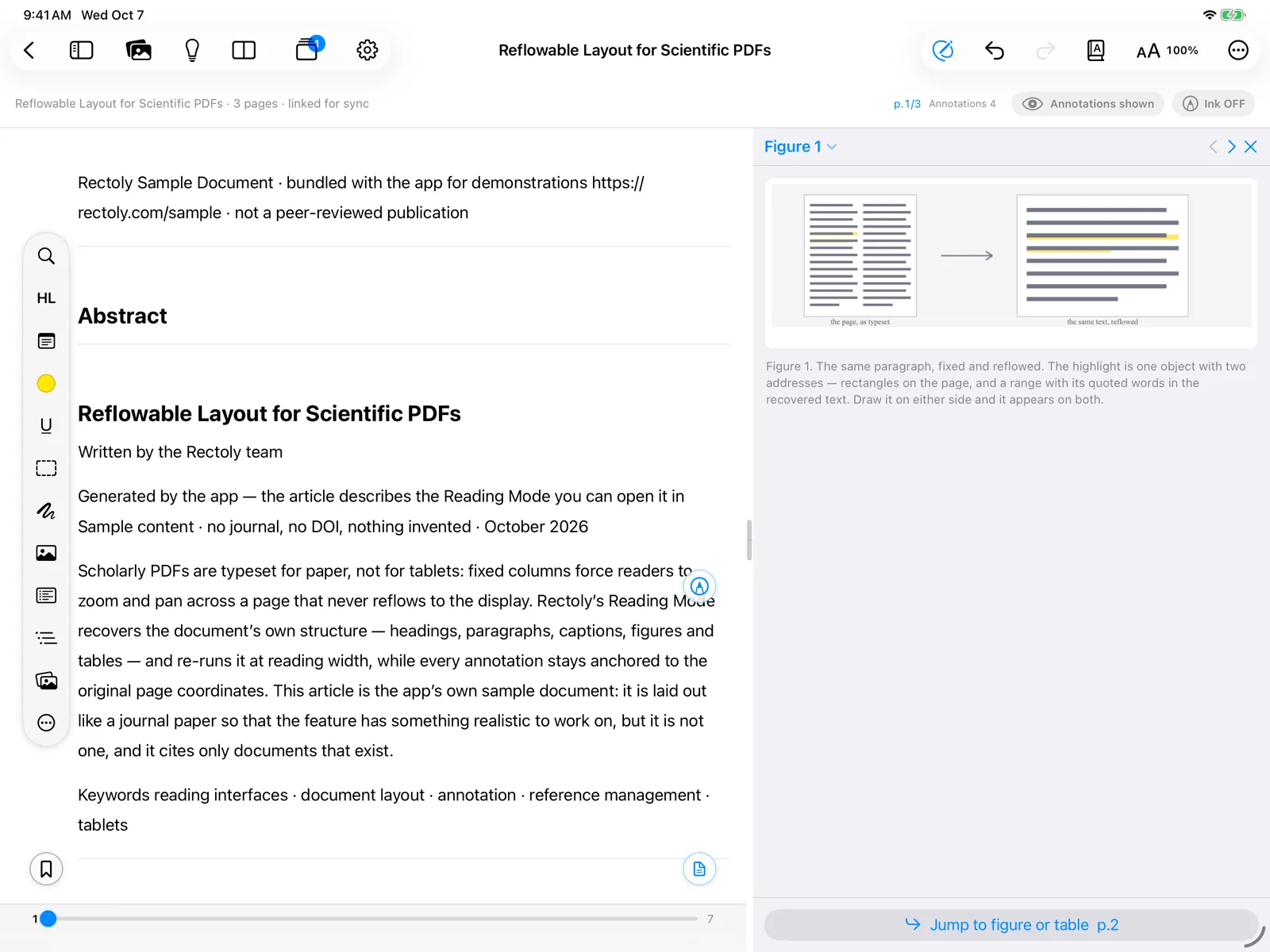
Choose a figure
- Step through the paper's figures and tables with the previous / next buttons.
- ⌥PageUp / ⌥PageDown do the same.
- Alt+PageUp / Alt+PageDown do the same.
- Press Choose Figure or Table to pick one from the list.
- Right-click a figure in the PDF and choose Show … beside the text.
- In Reading Mode, press the pin on a figure card to put that figure in the panel.
- In the list of the paper's figures and tables, press the pin (Show beside).
Look closer and jump
- Double-click, or use Ctrl + mouse wheel, to zoom. Drag to move a zoomed figure.
- Jump to figure or table takes you to the figure's page; Back to where I was reading returns you.
- Go to page takes you to the figure's page.
Close the panel with ×.
When the panel does not appear
- The panel needs room beside the text. On Windows you may see "Not enough room beside the text for the figure panel." Widen the window or hide the library.
- If the paper has no figures or tables that Rectoly can find, the panel says so.
- The column on the right shows one thing at a time: the figure panel, a research theme or a document beside the paper.
The figure panel is free.