Search inside a paper
- Open a paper.
- Open search:
- Choose Search on the tool rail, or press ⌘F. A floating Search panel opens.
- Click Find in the paper in the toolbar, or press Ctrl+F.
- Tap Search (the magnifier) in the bar at the top.
- Type a word. Matches in the text are listed with their pages; press one to go there.
- Return or ⌘G goes to the next match, ⌘⇧G to the previous one.
- Use the arrows next to the count to go to the next or previous match.
The results also list matching annotations and, when handwriting search is on, a Handwriting section.
- Sticky notes only searches just your sticky notes instead of the PDF text. To start every search this way, turn on Start search with “Sticky notes only” on in Settings.
- In Reading Mode, a search bar (Search text) opens above the text with ⌘F / Ctrl+F.
- In Reading Mode, Enter and Shift+Enter (or F3 and Shift+F3) go to the next and previous match.
A scanned PDF without a text layer cannot be searched: there is no text in it to find.
A scanned PDF has no text to find until Rectoly reads it with text recognition. See Scanned PDFs.
Search the library
The search field above the paper list finds papers by their details.
- It matches the title, the authors and the year.
- It also matches the DOI and tags.
- Press ⌘K (or ⌘L) to jump to the field.
- Press Ctrl+K (or Ctrl+L) to jump to the field.
- If a paper you expect is missing, check that a view (Unread, Favorites and so on), a collection or a tag is not narrowing the list. See Browsing and filtering the library.
This field searches the details only. To search inside the papers, use Across papers.
Search across papers
Across papers searches the full text, the annotations and the handwriting of every paper on this device at once.
- Open Across papers:
- At the top of the library column, switch Library | Across papers to Across papers. The magnifier in the paper list opens it too.
- On iPhone and in a narrow window, the same switch is at the top of the first screen.
- At the top of the library column, click the Across papers tab next to Library.
- In the library's title bar, tap the magnifier with lines beside it. Choose Full text, Notes or Handwriting to say where to look.
- Before you type, the tab lists Annotations across papers: every annotation, paper by paper, in page order.
- Type in the search field. On iPad, Mac and Windows the results come in sections: Matches in papers (the matching words in bold), Handwriting and Annotations across papers.
- Press a result to open that paper at that page.
- The spot is briefly highlighted.
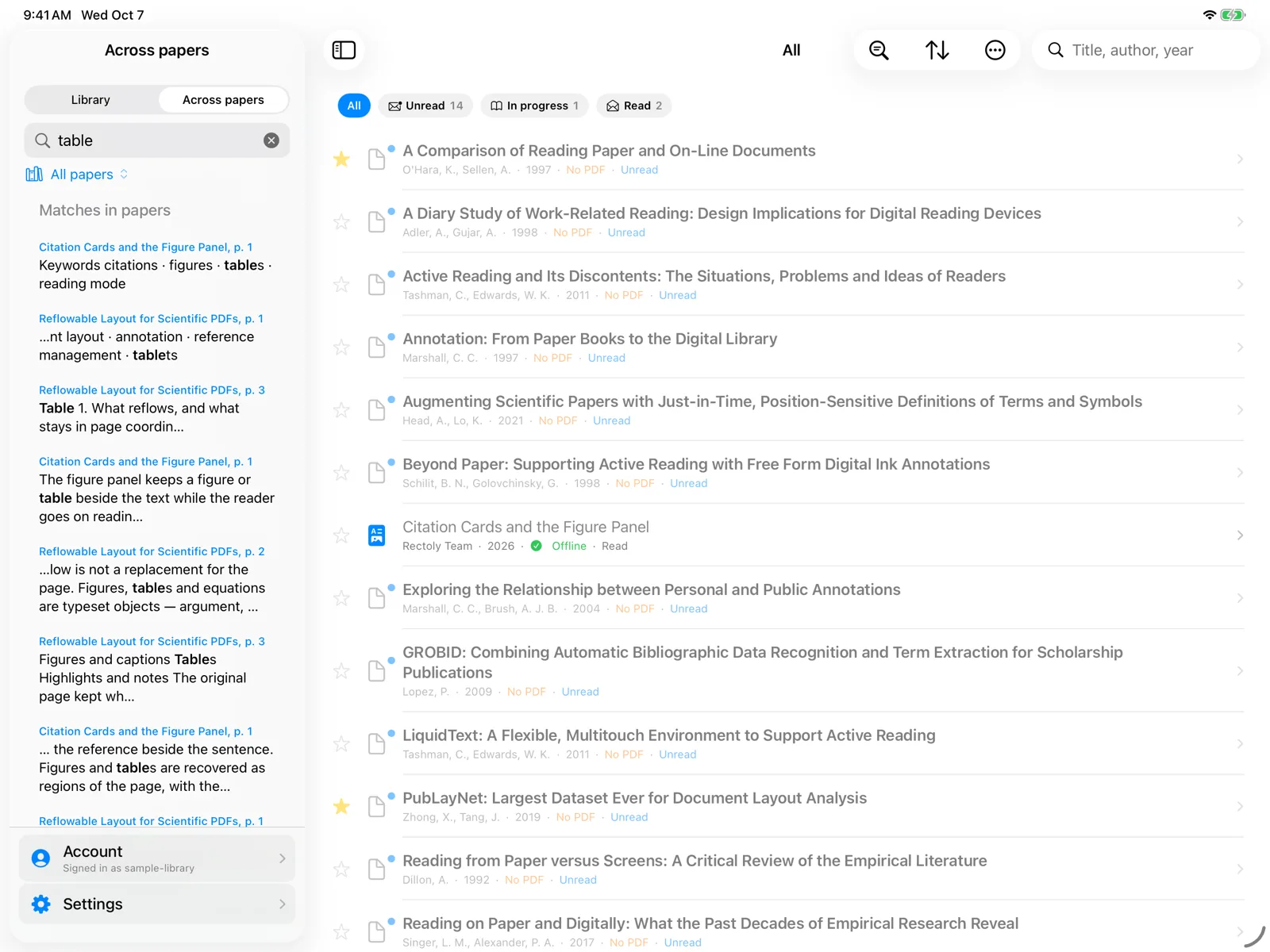
- Everything is searched on this device. Only papers whose PDF is on this device can be found.
- While Across papers is open, papers that are not indexed yet are read one by one, with "Indexing papers: N of M" at the top. Results fill in as it goes.
- The index also fills in in the background while the device is charging.
- Two buttons in the tab work on every paper on this PC: export figures and tables and extract sections into a comparison table.
- What you typed stays when you switch tabs and come back.
On Windows and Mac, Across papers is included in the purchase. It is free during the 14-day trial, and each paper's own annotations stay free to read and export. On iPad, iPhone and Android, searching across papers is free.
When a paper does not turn up
- Check that the paper's PDF is on this device. See Downloading PDFs and reading offline.
- Keep Across papers open for a while so indexing can finish.
- If results still look wrong, rebuild the index: Settings › Troubleshooting › Search index for Across papers › Rebuild. The text of every PDF is read again; annotations, handwriting and PDFs stay as they are. See Troubleshooting.