Turn it on
- Sign in to iCloud on the device, with iCloud Drive turned on (in the system's Settings).
- In Rectoly, open Settings › Sync & Backup › iCloud backup. The reader's Settings › iCloud & sync has the same settings.
- Annotations (highlights, underlines and sticky notes) are backed up automatically. There is nothing else to turn on.
If Rectoly says iCloud is not connected, sign in in the system's Settings, then press Refresh Status.
Back up and sync handwriting
Handwriting takes much more space, so it is off by default.
- Turn on Sync and back up handwriting via iCloud.
- Rectoly uploads the handwriting already on this device and shows how many items are done.
- From then on, handwriting syncs between your devices with the same iCloud account: when you open a paper, newer handwriting from your other devices comes in. What you write on the iPad shows up on the iPhone and the Mac.
If your iCloud storage runs out, Rectoly turns handwriting backup off and removes only the handwriting it had put in iCloud, so the annotation backup can go on. The handwriting on your device is never touched.
Restore on a new device
Restoring never happens by itself; you choose it.
- Install Rectoly and sign in to the same iCloud account.
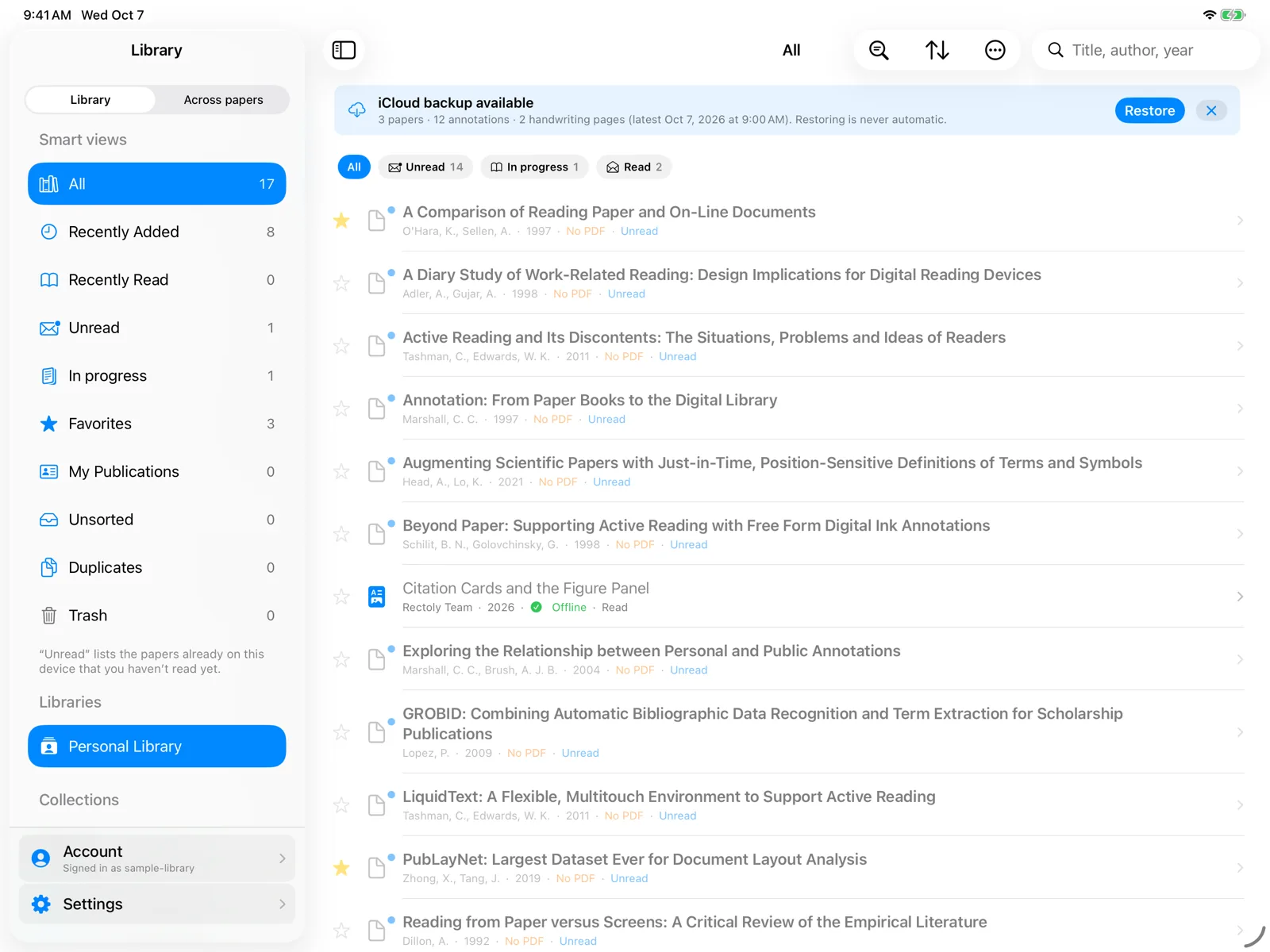
- When the library says iCloud backup available, press Restore.
- You can also restore any time from Settings › Sync & Backup › Restore from Backup….
- Rectoly says how many annotations and handwriting pages it put back. Papers you have open show them right away.
Reading progress
Where you stopped reading and which papers are read stay in step across your devices through iCloud. Reading status sync shows when it last synced and on how many devices.
Good to know
- iCloud backup is free.
- It keeps your annotations and handwriting, not the PDFs. The PDFs come back from Mendeley or Zotero.
- It covers papers opened from your Mendeley library. A PDF opened only as a file on this device is not backed up; use an archive for those.
- To move to Windows, Linux or Android, or to keep a copy of your own, use archives.