Open and close Reading Mode
- Open a paper.
- Switch to Reading Mode:
- Press the round button at the bottom right (a page icon), or press ⌘R.
- Click Reading in the PDF | Reading switch above the paper, or press Ctrl+R.
- Tap the round button at the bottom right (a book icon).
- After "Preparing Reading Mode…", the paper appears as one column.
- To go back to the PDF, press the same button again (⌘R / Ctrl+R).
- The back arrow at the top left also leaves Reading Mode.
Reading Mode is included in the purchase. It is free during the 14-day trial and always free in the sample paper. See Trial and purchase.
Figures, tables and citations
- Figures and tables appear as cards in the text. Press a card to see it large; Open in PDF View jumps to its page.
- The pin on a card keeps that figure beside the text while you read on. See Figure panel.
- Press a citation such as [12] to see the reference it points to. See Citation cards.
- Long-press a figure or table card (right-click on Mac and Windows) to Save figure as PNG…, Copy figure, Save table as CSV… or Copy table (pastes into a spreadsheet).
Formulas in the text
- Formulas inside a paragraph are shown as small cut-outs of the PDF page itself, so every symbol looks exactly as printed — no more garbled characters.
- They follow the text size and the light or dark appearance of Reading Mode.
- A paper without formulas looks exactly as before.
- Not covered yet: formulas in headings and captions. Copying a passage copies the text read from the PDF, not a picture of the formula.
Math and code as they are on the page
Reading Mode shows real superscripts and subscripts, and shows a line with symbols that can't become text, or with stacked fractions or matrices, cut from the page. Code keeps its indentation, line by line. Figures and tables, two-column reading order, and where the references end and an appendix begins are read more accurately too.
Footnotes and endnotes
- Footnotes do not interrupt the text: they are collected at the end, as endnotes.
- The first page's block with the authors' affiliations, e-mail addresses and received dates moves there too, so the text begins with the paper itself.
Highlight, copy and send
Select text to get a menu with Highlight and Underline.
- The menu also has Copy with page and Send to theme (see Research themes).
- To find Similar passages in other papers, tap a highlight or underline, or right-click a paragraph. See Similar passages.
- Similar passages in other papers is in the selection bar and on right-click. See Similar passages.
- Highlights and notes made in Reading Mode are the same annotations as in the PDF view, and they sync to Mendeley or Zotero in the same way.
Text size, appearance and the PDF side by side
- Text size:
- Pinch, press Aa 100% at the top, or use ⌘+ / ⌘− / ⌘0. On iPhone, the Aa button opens the text size menu — see Text size on a phone.
- Use the smaller / larger text buttons, click the percentage to reset, or press Ctrl+= / Ctrl+− / Ctrl+0. Ctrl + mouse wheel works too.
- Use the smaller / larger text buttons, or pinch. On a phone they fold into one Aa button — see Text size on a phone.
- Light or dark: choose Reading Mode appearance in Settings (Follow app / Light / Dark). It changes only the reading surface.
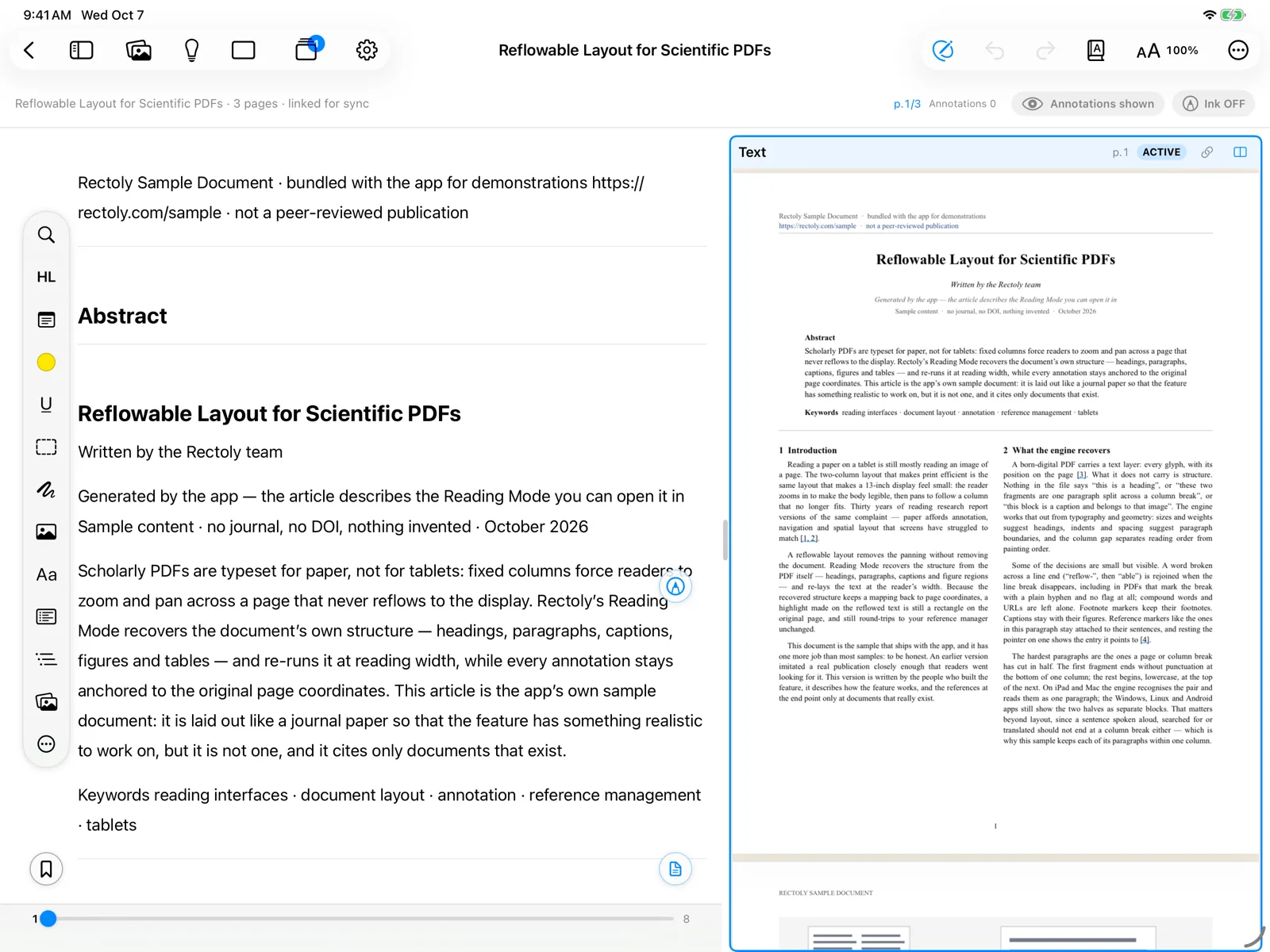
- Compare with the original: Show PDF side by side puts the PDF next to the rebuilt text.
- The button at the top left, a long press on the round button, or ⌘⇧R.
- The side-by-side button above the paper, or Ctrl+Shift+R.
- The side-by-side button at the top, or a long press on the round button.
- Always open papers in Reading Mode: in Settings › Reader, set Default view to Reading Mode.
Text size on a phone
On a phone, the Reading Mode bar has a single text size button (Aa):
- Press it for Smaller text, the current size in percent and Larger text, together in one menu.
- The menu stays open while you adjust, so you can find a comfortable size in one go.
- You can also pinch with two fingers.
Bookmarks
- Press the floating bookmark button or ⌘D. Long-press it to see the list.
- Hover over a paragraph and click the bookmark that appears beside it, or press Ctrl+D. Bookmarks at the top lists them.
- Tap the bookmark at the top. Long-press it to see the list.
Menus and handwriting in Reading Mode
- The menus hide while you read. The round pen-tip button on the right edge shows or hides them; Apple Pencil double-tap or squeeze does the same. Hiding the menus turns handwriting off.
- The pen and eraser are in the bar above the text, as in the PDF view.
- The pen and eraser work with a finger too. Handwriting written in Reading Mode is not included in handwriting search.
Why handwriting can look shifted
Reading Mode reflows the text to fit the width, orientation and text size of the screen, so handwriting follows the reflowed text rather than a fixed page. After you rotate the screen or open the paper on another device it can look shifted. The ink itself is never lost — only where it is shown changes. For marks that must stay exactly in place, write in the PDF view.
When a paper cannot be rebuilt
- Some PDFs cannot be rebuilt ("Reading Mode isn’t available for this PDF"). Read them in the PDF view.
- If the rebuilt text looks wrong, choose … › Report a layout problem. Only positions and structure are sent; the text is masked.
- The same Report a layout problem is in the ⋮ menu.
- A stale layout can be cleared under Settings › Troubleshooting › Paper structure cache; it is rebuilt the next time the paper opens in Reading Mode. See Troubleshooting.
- The same Paper structure cache is under Settings › Troubleshooting.