How to Annotate a PDF on iPad in 2026: The Free Built-in Tools, Apple Pencil, and the Best Apps Compared
How to highlight, write on and comment on a PDF on an iPad, for free with the tools already on it, and which app to use when you annotate a lot. Where each app keeps your annotations, why annotations sometimes "disappear", how to save an annotated PDF, and what to use for research papers.
To annotate a PDF on an iPad, open it in the Files app or in Preview, tap the Markup button, and write on it with Apple Pencil or your finger. It is free, it needs no extra app, and the marks are saved into the PDF itself. That covers a form, a contract or the occasional article. If you annotate PDFs every day, the choice of app matters more than the pen, because each app keeps your annotations in a different place, and that decides whether you can find them again on another device or in another app.
This guide covers both: the built-in way, step by step, and how the main annotation apps differ, with a section at the end for research papers.
The free way: Markup in Files and Preview
Every iPad has Markup, Apple's drawing and annotation tool, built into the Files app. Since iPadOS 26 the iPad also has Preview, the PDF and image app that Mac users know, which uses the same Markup tools.
- Open the PDF in the Files app, or open the Preview app and pick the file.
- Tap the Markup button, the icon of a pen tip.
- Choose a tool from the palette: pens, a highlighter, a pencil, an eraser and a ruler. The + button adds text boxes, a signature and shapes.
- Write with Apple Pencil, or with your finger if you have no Pencil.
- Tap Done. The marks are saved into the PDF file.
The Books app can do the same for PDFs you keep there. All three are free, and because the marks are written into the file, another PDF app on another device will show them.
What Markup does not do is organise anything. There is no list of your highlights, no search across files, and no connection to wherever you keep your documents. For one PDF that does not matter. For a semester of reading, it does.
Where your annotations end up
This is the question that decides which app to use, and the one most comparisons skip. There are three places an app can keep what you mark.
- In the PDF file. Markup, Preview, PDF Expert and Adobe Acrobat Reader write standard PDF annotations into the file. Send the PDF to someone, or open it in another app, and the marks are there.
- Inside the app's own notebook. Note-taking apps such as Goodnotes and Notability import the PDF into a notebook of their own, and LiquidText into a project. Your marks live in that app. To get a PDF with them, you export a copy, often with the marks flattened into the page so they can no longer be edited.
- In your reference manager. For research papers, the Zotero app and Rectoly save your marks as annotations in your Zotero or Mendeley library, so they appear on your computer and your other devices with the paper they belong to.
This is also the usual answer to "my annotations disappeared" or "my annotations don't show": the marks were made in an app that keeps them inside its own notebook, and the PDF you opened somewhere else is the original file, which never had them.
The main annotation apps compared
Prices and plans as listed on the US App Store in November 2026.
| App | Best for | Where your annotations live | Price |
|---|---|---|---|
| Files and Preview (built in) | A form, a signature, a quick mark | In the PDF | Free |
| Adobe Acrobat Reader | Comments and highlights that anyone can open | In the PDF | Highlights and comments are free; editing the PDF needs a subscription |
| PDF Expert | Fast reading and markup of many PDFs | In the PDF | Annotation is free; editing needs a paid plan |
| Goodnotes | Handwriting-heavy study notes | In a Goodnotes notebook; export a copy | Free to start; subscriptions, and a one-time purchase is also listed |
| Notability | Lecture notes with audio recording | In a Notability note; export a copy | Free with limits; subscriptions |
| LiquidText | Pulling excerpts from several documents side by side | In a LiquidText project | Free; subscriptions for more |
| Zotero (app) | Zotero users reading PDFs in their library | In your Zotero library | Free |
| Rectoly | Reading research papers from Zotero or Mendeley | In your Zotero or Mendeley library | 14 days free, then a one-time purchase |
How to choose
- You need to fill in, sign or mark one document. Use Markup in Files or Preview. Nothing to install, nothing to pay.
- You annotate to study, mostly by hand. Goodnotes or Notability, if you are happy for the notes to live in that app and to export a copy when you need the PDF.
- Other people need to see your comments. Acrobat Reader or PDF Expert, because the comments are standard PDF annotations that any reader can display.
- You read research papers from a reference manager. The Zotero app if you use Zotero and the page as it is printed is enough, or Rectoly if you read many two-column papers, use Mendeley, or want your annotations on your computer as well as the iPad.
Annotating research papers on an iPad
Research papers add two problems that most annotation apps do not try to solve.
The first is the layout. A journal paper is set in two narrow columns for printing, and at iPad width you zoom and pan along each column, which turns every highlight into a small fight with the page. The second is where the annotations go. A paper belongs to your library in Zotero, the free reference manager run by a non-profit, or Mendeley, Elsevier's reference manager, and an annotation made in a separate PDF app stays with that app's copy. Your library never learns about it, as What Zotero Does With Your Annotations on iPad explains in detail.
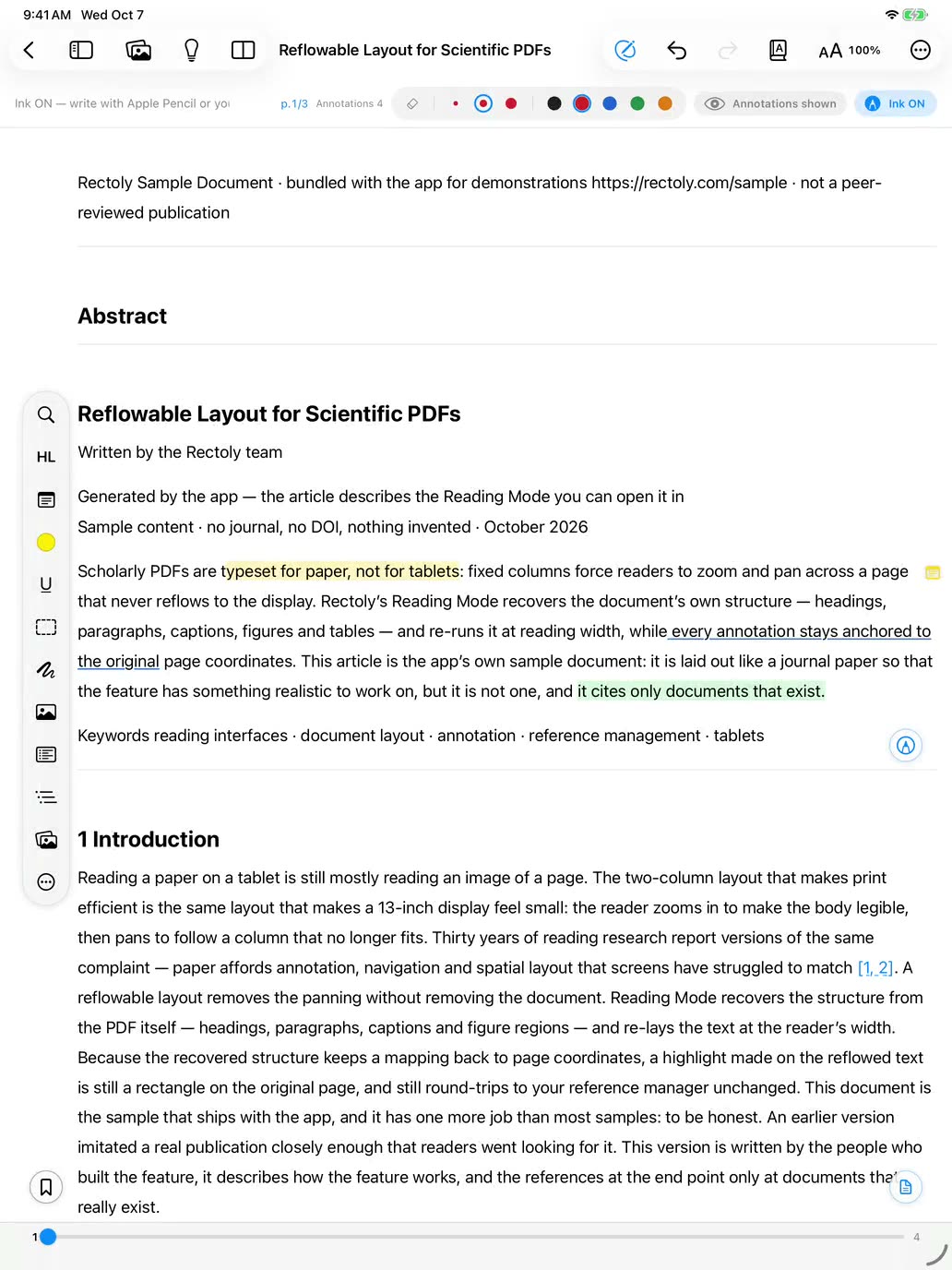
Rectoly is a reader built for that case. It signs in to your Zotero or Mendeley account, and its Reading Mode reflows a two-column paper into one column at the width of your screen. You highlight, underline, add sticky notes and write with Apple Pencil on that reflowed text, and each mark stays anchored to the original page, so it is saved to your library as an ordinary Zotero or Mendeley annotation and appears on your computer with the paper. Handwriting follows the format of each library: Zotero has an ink annotation type, Mendeley has none, so in the Mendeley edition handwriting is kept with the paper as an attached file and Rectoly draws it on every device, as described in How to Annotate Mendeley PDFs on iPad. Rectoly is free for 14 days, then a one-time purchase of $19.99 for the Zotero edition or $49.99 for the Mendeley edition, covering iPad, iPhone, Mac, Windows, Linux and Android.
Tips for annotating with Apple Pencil
- Give colours a meaning and keep to it. For example, yellow for claims, green for methods and data, red for what you doubt. A colour you can filter by later is worth more than a colourful page.
- Write the reason, not just the mark. A highlight tells you where; a two-word note next to it tells you why, which is what you will have forgotten in a month.
- Use the Pencil's double-tap or squeeze to switch between the pen and the eraser without reaching for the toolbar. You can change what it does in Settings › Apple Pencil.
- Decide where the annotations should live before the first one. Moving a semester of marks from one app to another is the step nobody manages.
Frequently asked questions
How do I annotate a PDF on an iPad for free?
Open the PDF in the Files app or in Preview, tap the Markup button, and write with Apple Pencil or your finger. Tap Done and the marks are saved into the PDF. Adobe Acrobat Reader and PDF Expert also let you highlight and comment for free, and the Zotero app is free for PDFs in a Zotero library.
Can I annotate a PDF on an iPad without an Apple Pencil?
Yes. Markup, Preview and the annotation apps all accept a finger. Highlighting selected text works just as well with a finger; handwriting is where the Pencil makes the difference.
How do I save an annotated PDF on an iPad?
With Markup in Files or Preview, tapping Done saves the marks into the same PDF. In note-taking apps such as Goodnotes or Notability, the marks stay in the app's notebook; use the app's export or share option to save a PDF copy with them. In Zotero and Rectoly, annotations are saved to your library as you make them.
Why did my annotations disappear, or not show in another app?
Usually because they were made in an app that keeps annotations inside its own notebook or project, and the file you opened elsewhere is the original PDF without them. Export a copy from the app you annotated in, or use an app that writes annotations into the PDF or into your reference manager.
What is the best app to annotate PDFs on an iPad?
It depends on where you want the annotations to live. For quick marks, the free Markup tools. For handwritten study notes, Goodnotes or Notability. For comments other people will open, Acrobat Reader or PDF Expert. For research papers in a Zotero or Mendeley library, the Zotero app or Rectoly.
Is there a PDF annotation app for iPad that is a one-time purchase?
Yes. Rectoly is a one-time purchase after its 14-day trial, and Goodnotes lists a one-time purchase alongside its subscriptions on the App Store. The built-in Markup tools are free.
Do annotations made on an iPad show up in Zotero or Mendeley?
Only if the app writes them to your library. Annotations made in the Zotero app or in Rectoly are saved to your library and appear on your computer. Annotations made in a separate PDF app stay in that app's copy of the file. Mendeley has had no iPad app of its own since 2021.