Rectoly Organizes Your Notes and Writes Your Literature Review Table — With AI On Your Own Device
Rectoly 5.1 for iPad, iPhone and Mac and 2.1 for Windows, Linux and Android add two AI features that run on the machine in front of you. Organize with AI groups the notes you wrote across many papers by topic and writes only the headings. Paper cards write each paper’s research question, method, data, findings and stated limitations into a literature review table, every sentence checked against the text and carrying its page. Nothing is uploaded — or bring your own API key.
After the reading comes the slow part: sorting the notes you left across twenty papers, and writing up what each paper asked, how, on what data, and what it found. The new release of Rectoly — 5.1 on iPad, iPhone and Mac, 2.1 on Windows, Linux and Android, both editions — hands those two jobs to an AI that runs on the device you are holding, with the same model that already translates your papers. It never changes a word of your notes, every sentence it writes about a paper names the page it came from, and nothing leaves the machine unless you choose to bring your own API key.
What is new, in one table
| Organize with AI | Paper cards | |
|---|---|---|
| What you give it | The notes you wrote across many papers: comments on highlights, sticky notes, text boxes | The papers you choose, with their PDF on the device |
| What the AI writes | Only the headings — the names of the topics | Five fields per paper: research question, method, data / sample, findings, stated limitations |
| What it never does | Change a character of a note | Keep a sentence the paper’s text does not support |
| What you get | A research theme: your notes under headings, each leading back to its page; export to Markdown or Word, or send it to Zotero as a note | A literature review table, one row per paper, a page on every sentence; review-table.md and .csv; Zotero notes if you want them |
| Where it runs | On the device, with the translation model | On the device, with the translation model |
Organize with AI: your notes, grouped by topic
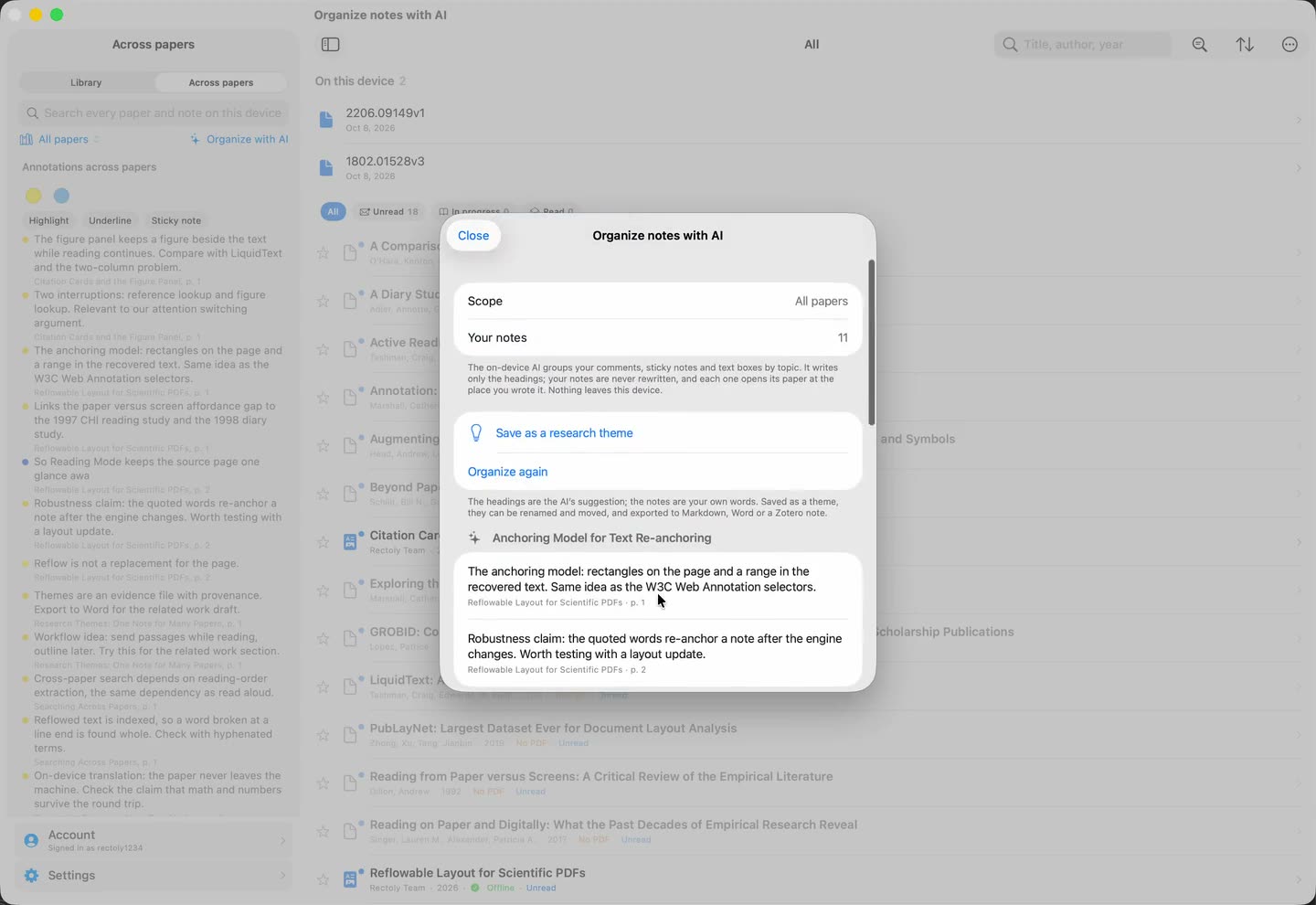
Open Across papers, choose a collection or your whole library, and press Organize with AI. The notes you wrote while reading — in the Zotero edition the comments on highlights, sticky notes and text boxes; in the Mendeley edition sticky notes and notes — come back grouped under headings by topic. A highlight without a comment is the author’s words rather than yours, so it is left out.
The AI writes only the headings. Every note stays exactly as you wrote it, with its paper’s title and its page, and a tap opens the paper at that place. A note that fits no heading is not dropped: it waits under Notes under no heading. The headings come in the language most of your notes are in.
Press Save as a research theme and the result is an ordinary Rectoly theme. Rename the headings, move a note the AI misplaced, add paragraphs of your own, and export it to Markdown or Word with a reference list — or, in the Zotero edition, send it to Zotero as a note. The theme begins with one line saying that the headings are the AI’s and the notes are yours.
The headings are a suggestion. A note can land under the wrong one, which is why the theme is editable and why Organize again sits beside Save as a research theme.
Paper cards and the literature review table
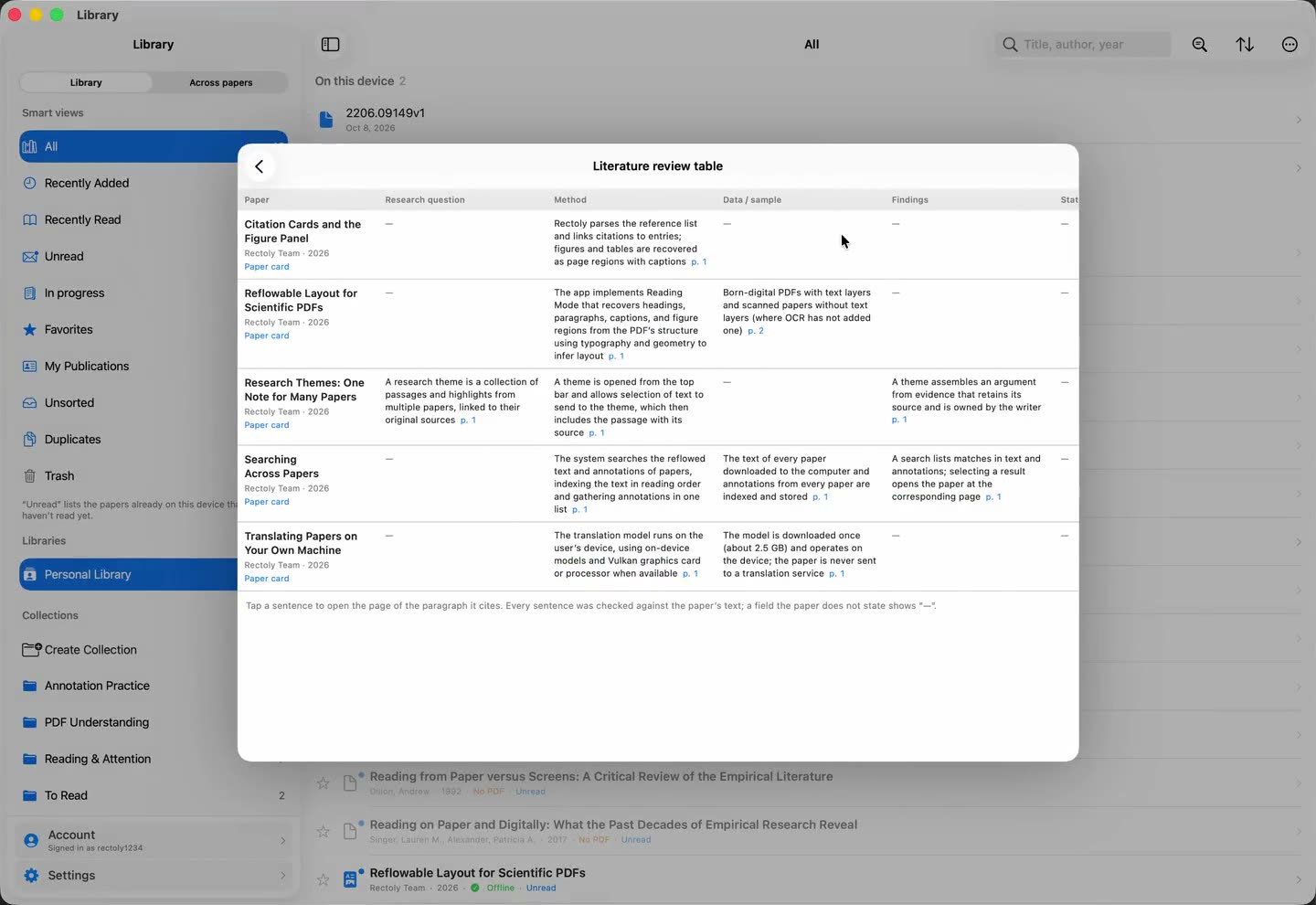
Choose Paper cards… in the library’s menu and pick the papers. For each one the AI writes out, from the paper’s own text and in the paper’s own language, five things: the research question, the method, the data or sample, the findings, and the limitations the authors themselves state. Each sentence ends with its page. One paper takes from a few seconds to about a minute, and one paper failing does not stop the rest.
Open the table lines the cards up: a row per paper, five columns, a page on every sentence. Tap a sentence and the paper opens on the paragraph it cites. The same table is written to a folder as review-table.md and review-table.csv, with one Markdown card per paper, ready for your spreadsheet or your notes. In the Zotero edition the pages in the Markdown are zotero://open-pdf links that open the PDF there, and Save to Zotero as notes attaches each card to its paper as a child note tagged “Rectoly card”, where the plugins and tools that read Zotero can find it. On Windows and Linux, the card of the paper you are reading sits in a tab of the side panel.
A card made on one device travels with the paper. While handwriting sharing with Zotero or Mendeley is on, the card of a paper in your personal library is saved with that paper’s handwriting and appears in Rectoly on your other devices, even one that has no model.
Checked against the text
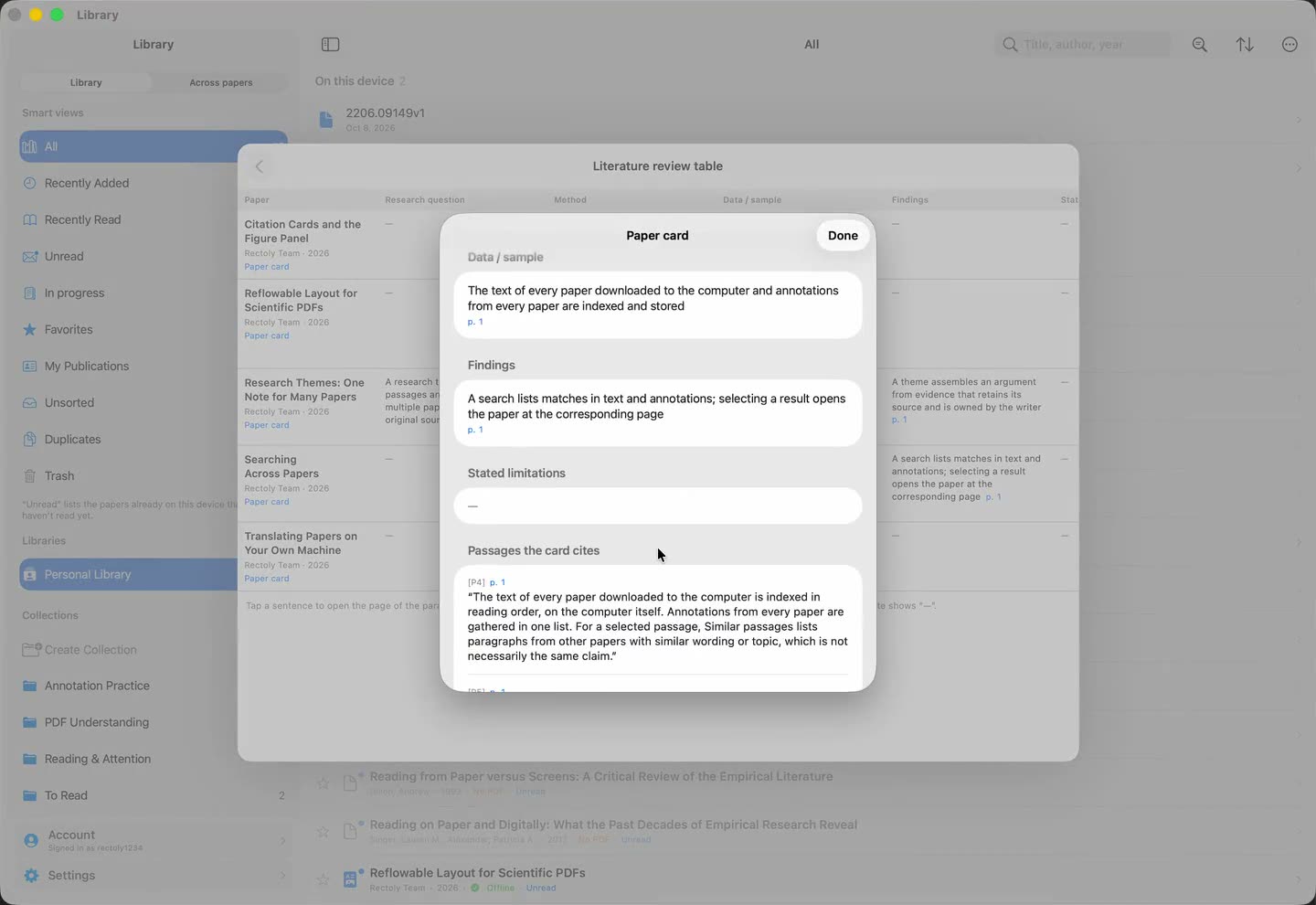
The reason researchers distrust AI summaries is that the model fills gaps with plausible sentences. Rectoly’s cards are built so that this cannot pass silently. The AI writes only from paragraphs of the paper that Rectoly selected and numbered, and every sentence must say which of them it rests on. Rectoly then checks each sentence against those paragraphs:
- A sentence with content or a number that is not in the paragraphs it cites is dropped, and the card says how many were: N sentences the text did not support were left out.
- Stated limitations holds only what the authors wrote as a limitation. A limitation the AI thought of does not get in.
- A field the paper does not state stays empty and shows “—”, rather than a guess.
- The card quotes the passages it cites, so you can check it without opening the PDF — or tap and open the paper there.
The check removes invented content and invented numbers. It cannot prove that a sentence reads its paragraph correctly. Where it matters, open the page: that is what the page numbers are for.
Where the AI runs
Both features run on the device, with the same model translation uses — about 2.5 GB, downloaded once from our own servers, and offline from then on. Your notes and your papers are not sent anywhere, to us or to anyone. What it needs:
- iPad and iPhone (5.1): 8 GB of memory or more.
- Mac (5.1): Apple silicon with 8 GB of memory or more.
- Windows and Linux (2.1): a 64-bit x86 processor with AVX2 and 8 GB of memory; a Vulkan-capable graphics card makes it quick.
- Android (2.1): roughly 8 GB of memory or more. A paired PC can take on translation for an Android device or an iPad, but Organize with AI and paper cards run on the device itself.
On a device that cannot run the model, or if you want a stronger one, choose Your own API key under Settings › AI. The providers are OpenAI, Anthropic (Claude), Google Gemini, DeepSeek, OpenRouter, any OpenAI-compatible server, and Ollama or LM Studio on your own network. The paragraphs and notes then go from your device straight to the provider you chose, never through a Rectoly server; the key is stored on that device only; the provider bills you. Before anything is sent, Rectoly shows what will be sent and an estimate of how much, in tokens, and asks. Nothing is sent in the background: translating library papers ahead stops while your key is in use, and only what you start yourself is sent. The setting starts on This device, so nothing goes out unless you choose it.
There is no chat screen. Rectoly uses AI for three things — translation, organizing your notes, and paper cards — and nothing else.
Which apps, and what it costs
The release is out for both editions, Rectoly for Mendeley and Rectoly for Zotero: version 5.1 on iPad, iPhone and Mac, and 2.1 on Windows, Linux and Android. Organize with AI and paper cards are part of the app you bought — the one purchase covers every system — and free during the 14-day trial. There is no per-use fee; with your own API key, the provider’s charges are yours. In some regions and stores the settings have no AI, and your own API key cannot be used there.
The same release also adds Vietnamese, Ukrainian and Thai as translation languages on iPad, iPhone and Mac (Thai through the system translator).
Frequently asked questions
Are my notes or my papers uploaded anywhere?
No. On This device, the model runs on your own machine and nothing is sent to any server, ours included. Only if you choose Your own API key do the paragraphs a card is written from, or the notes you organize, go to the provider you picked — and Rectoly asks first, every time, with an estimate of how much will be sent.
Does Rectoly summarize papers or answer questions about them?
No. There is no chat and no free-form summary. A paper card is five fields — research question, method, data, findings, stated limitations — written from the paper’s own text and checked against it. It is the short read you would do to decide how much time to give a paper, with a page on every sentence so you can go and see.
What happens when a paper does not state its limitations?
The field stays empty and shows “—”. Rectoly keeps in Stated limitations only what the authors themselves wrote as a limitation. A limitation the AI thought of is removed by the check.
Can I use ChatGPT, Claude or Gemini instead of the on-device model?
Yes, with your own API key. Choose Your own API key under Settings › AI, agree to what will be sent, and pick the provider: OpenAI, Anthropic (Claude), Google Gemini, DeepSeek, OpenRouter, an OpenAI-compatible server, or Ollama or LM Studio on your own network. Translation, Organize with AI and paper cards then all run with that provider. Rectoly sets no limit on how often you use your key; the provider’s charges are billed to you by the provider.
Do cards show up on my other devices?
Yes, for papers in your personal library, while handwriting sharing with Zotero or Mendeley is on. The card is saved with the paper’s handwriting and Rectoly on your other devices shows it, even a device that has no model. A card of a paper in a group library, or one made while that setting is off, stays on the device that made it, and the card says so.
Can Zotero plugins and other tools read the cards?
In the Zotero edition, yes: Save to Zotero as notes attaches each card to its paper as a child note tagged “Rectoly card”, and the pages in the exported review-table.md are zotero://open-pdf links. Anything that reads Zotero notes — plugins, local agents, your own scripts — can read them.
What does it cost?
Nothing beyond the app. Organize with AI and paper cards are included in the purchase, on iPad, iPhone, Mac, Windows, Linux and Android alike, and free during the 14-day trial.
See the feature pages for the full picture: AI on the iPad, AI on your computer (Windows, Mac, Linux) and AI on Android. The step-by-step instructions are in the usage guide: Organizing your notes with AI, Paper cards and the literature review table and AI settings and your own API key.